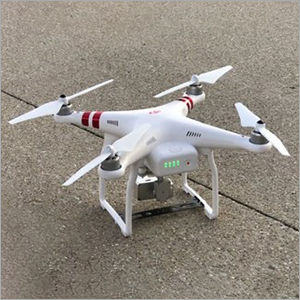
In this post, we will explore how to adjust camera settings on the DJI Mini 2. The DJI Mini 2, renowned drone under 500 for its compact design and excellent aerial capabilities, allows users to optimize their photo and video captures.
To make the most of its powerful camera, understanding and adjusting the right settings is crucial.
This guide will take you through the step-by-step process of tweaking your camera settings to achieve the best possible results.
To begin adjusting the camera settings on your DJI Mini 2, your first step will be to navigate to the DJI Fly app, which serves as the control center for your drone.
Once you’re in the app, you will need to enter the ‘Camera’ menu where you can access a variety of settings.
These settings include resolution, frame rate, and white balance, among others, each of which plays a critical role in the quality of your footage.
Throughout this post, we’ll not only cover the basics such as selecting the appropriate resolution and frame rate but also delve into more advanced adjustments that can help you fine-tune your shots.
Whether you’re a beginner looking to capture stunning aerial photos or an experienced drone pilot aiming to perfect your video content, this comprehensive guide will provide you with the insights needed to elevate your DJI Mini 2’s camera performance.
Join us as we embark on this meticulous journey of mastering camera settings on the DJI Mini 2, ensuring that by the end of this guide, you will have the knowledge and confidence to adjust your settings for any shooting scenario.
Getting Started with the DJI Fly App
Embarking on your journey to optimize the DJI Mini 2’s camera settings necessitates a critical step — familiarizing yourself with the DJI Fly app.
This intuitive application serves as the operational hub for your drone, enabling you to adjust vital camera settings with precision.
Firstly, to get the DJI Fly app, simply navigate to either the App Store for iOS devices or Google Play Store for Android devices.
Search for “DJI Fly” and proceed with the installation. Once installed, open the app and follow the on-screen instructions to create a DJI account if you do not already have one.
Logging in ensures your settings and preferences are synchronized, providing a seamless experience.
With the app installed, the next phase involves connecting it to your DJI Mini 2. Begin by powering on your drone and the remote controller.
Ensure both devices are charged to prevent any interruptions during the setup.
Connect your smartphone to the remote controller using the provided USB cable.
Upon successful connection, the DJI Fly app should automatically recognize the DJI Mini 2, prompting a notification that your drone is ready to fly.
Detailed screenshots depicting these steps can be beneficial. Start with an image showcasing the DJI Fly app in the app store, followed by snapshots of the initial setup screens.
Finally, a screenshot illustrating the successful connection between the app and the DJI Mini 2 can offer visual confirmation of the described process.
Optimizing this connection setup enhances your control over the DJI Mini 2, ensuring you can swiftly access and modify the camera settings as required.
Errors during setup can impede functionality, so it is advisable to double-check each step.
By ensuring a smooth initial setup, you lay a robust foundation for an enhanced aerial photography experience using your DJI Mini 2.
 Site Title
Leave a comment